Related documentation
Images & Image Galleries
Roe CMS makes it really easy to create image galleries in Posts or Pages with Markdown.
Uploading Images
In order to add images to your Post/Pages, you’ll need to upload them. There are 2 ways to do this:
MEDIA ▼ button in The Editor
Opens a media browser in the editor and you can insert media directly at your cursor.
Admin → Media
On this page, you can:
- rename the file (double click on the name)
-
COPY URL- this is gives you thepathyou need to use images in Cards and Settings. -
MARKDOWN LINK- this is the exact syntax you need to add that image to a Post/Page.
Just one image, on it’s lonesome
If you want an image on it’s own, just use a standard Markdown image:

Use the MEDIA ▼ button in The Editor to open the media browser and drop an image directly at your cursor.
Simple Gallery
When you place 2 or more images consecutively (without blank lines between them), they automatically become a gallery:


↑ This creates a 3-column grid like this ↓
Fancy Gallery
By wrapping the images in a gallery block, you can:
- control the layout of the images
- feature images
- add captions to images
```gallery

```
This allows you to do some fancy things such as…
Featured/Hero Image
If you want an image to be full-width, just put it on it’s own line like so ↓
```gallery




```
- Row 1: 1 image (full width)
- Row 3: 3 images (33% width each)
Captions
Add captions to any image using this syntax (*caption-here*) immediately after the image ↓
```gallery
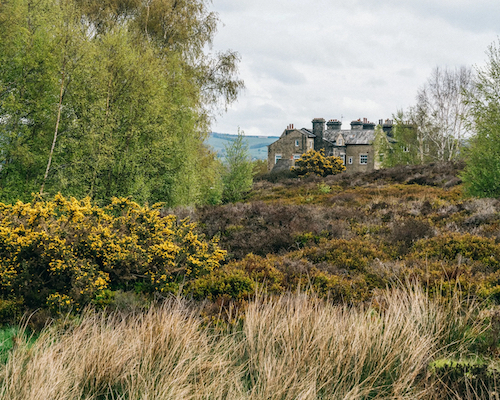
(*House on Ilkley Moore*)
```
↑ This will produce an image with a caption ↓
Combine all these features
Let’s create a Gallery with 3 rows and captions. We’ll have: - A hero image on top - 3 images in the middle - 2 on the bottom - all with captions
Here is to the code to achieve that:
```gallery
(*House on Ilkley Moore*)
(*House on Ilkley Moore*)
(*House on Ilkley Moore*)
(*House on Ilkley Moore*)
(*House on Ilkley Moore*)
(*House on Ilkley Moore*)
```
↑ This code will look like this ↓
Column Limits
Galleries support 1-3 columns per row. If you place more than 3 images on a single row, they will wrap.
Responsive Behavior
Right now, all gallery layouts are maintained even at small sizes. Room for improvement.
Spacing
Gallery spacing is controlled by the --space-gallery CSS variable in your theme. Set to 0rem for no gaps between images, or increase for more spacing.