Related documentation
Media
Every image, audio, and video file on your site lives in /site/media. You can add and manage these files 3 ways:
- the Media Browser
-
MEDIA ▼button in The Editor - Adding media straight to your
site/mediafolder.
Media Browser
The Media Browser lives at Admin → Media. It’s the home base for all your files — upload, rename, find, and tidy up from one place.
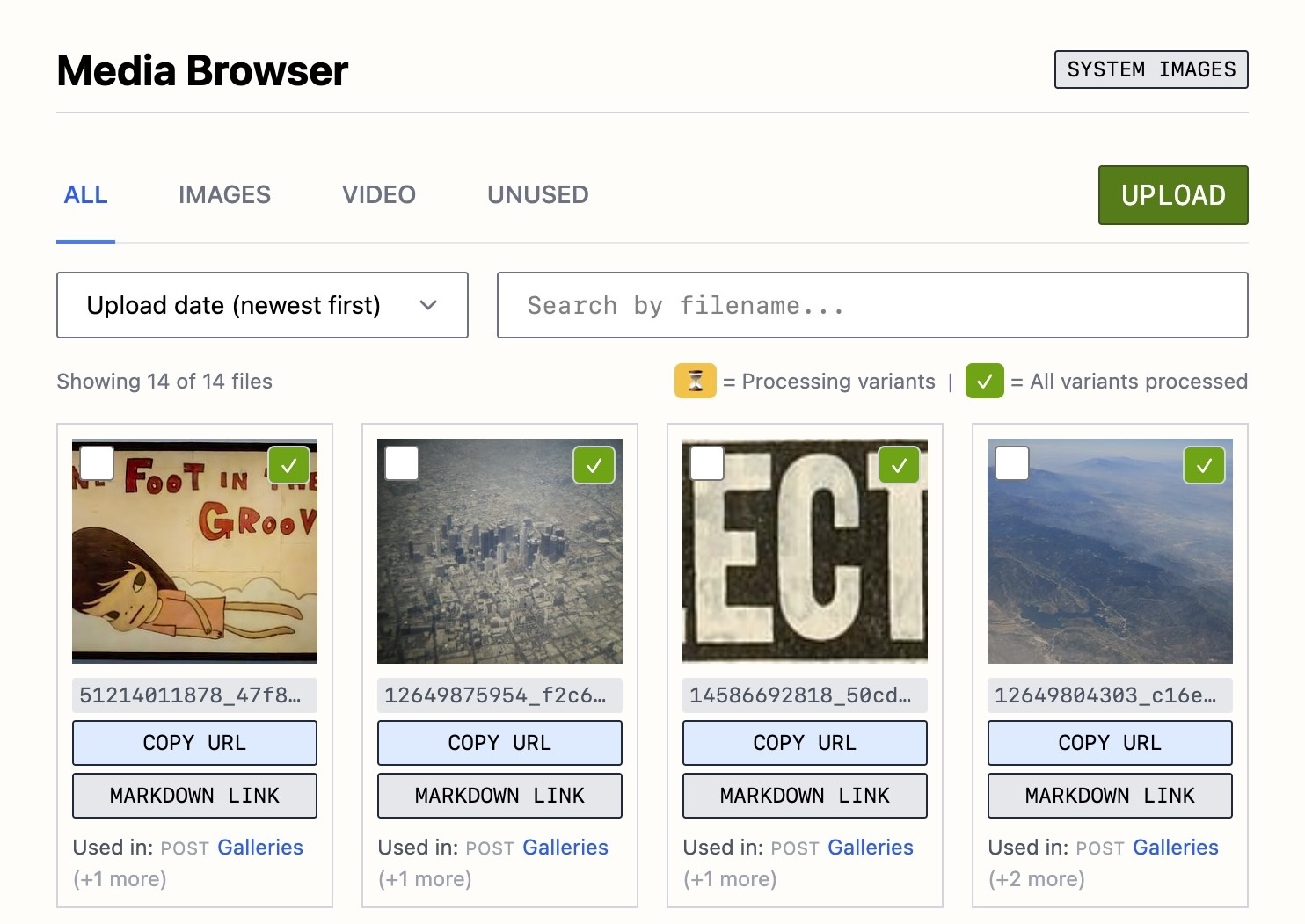
Browsing & finding
-
Type tabs — filter by
Images,Audio,Video, orUnused(files not referenced anywhere). - Sort — by upload date, filename, or file size.
- Search — filter the list by filename.
Each file shows a preview plus a few actions:
-
Copy URL — the
pathyou need for images in Cards, Settings, and metadata. -
Markdown link — the exact
syntax to paste into a Post or Page. - Used in — the posts, pages, and products that reference this file (see Usage tracking).
Renaming (updates every link)
Double-click a file’s name to rename it. Roe doesn’t just rename the file — it updates every reference to it across your content at the same time (posts, pages, products, and metadata). So renaming img_2381.jpg to sunset-over-the-bay.jpg leaves no broken links behind.
Usage tracking
Roe keeps track of where each media file is used. The Used in list on each file shows exactly where this file is referenced, and the Unused tab collects files that haven’t been used anywhere; handy for finding the images you just uploaded or cleaning things up.
Uploading
Click UPLOAD and pick one or more files at once. Uploads run in the background, so a big drop of images or audio won’t lock up the page — you can keep working while they finish. Roe generates the optimized image variants automatically as files land.
Bulk actions
Tick the checkbox in the upper right corner of any file (there’s a Select All Visible shortcut as well) to act on them together; including bulk delete (careful with this one).
The MEDIA ▼ button in The Editor
While writing, use the MEDIA ▼ button to add media without leaving the editor. It opens a picker for Images, Audio, or Video where you can search, select one or more files, upload new ones, and drop the markdown in at your cursor. Full details: The Editor.
Selecting several images at once inserts them one per line, which becomes a simple gallery.